
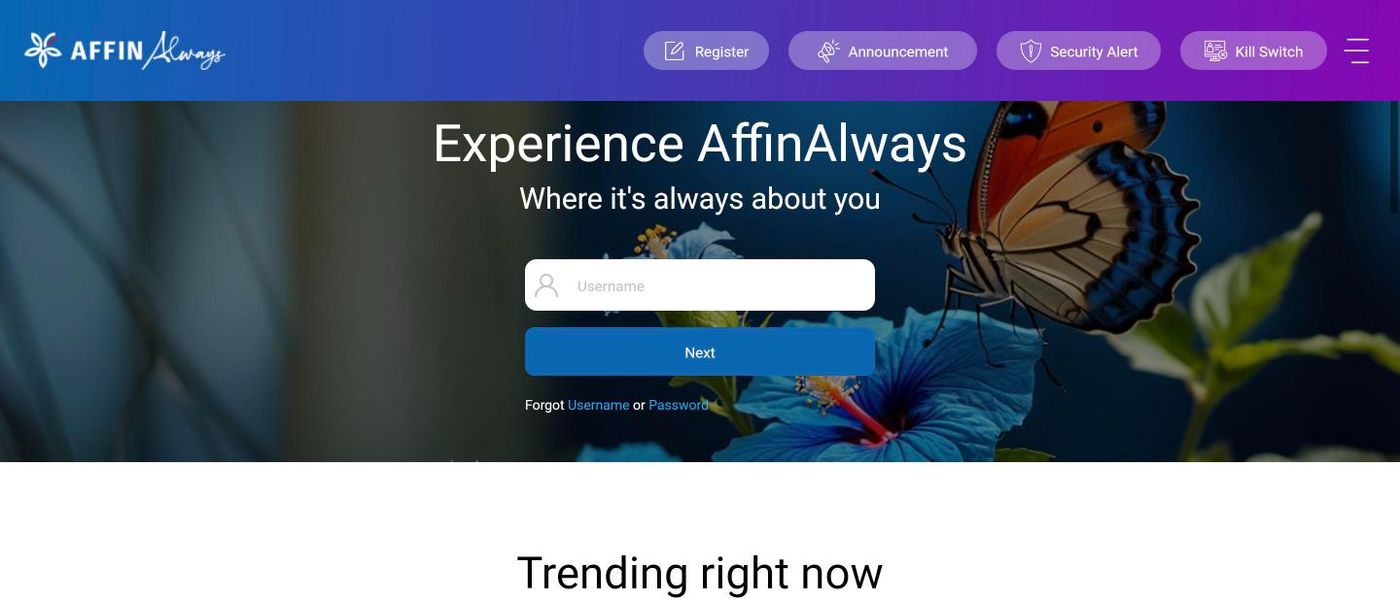
To log in to AffinAlways RIB, open ibanking.affinalways.com/login. The first screen asks for your Username. Select Next and follow the remaining prompts on the bank’s portal.
Checked on 10 November 2026. The address used in this guide is the current ibanking host. The older rib.affinalways.com address did not resolve in our check.
What Is AffinAlways RIB?
AffinAlways Retail Internet Banking (RIB) is AFFIN Bank’s browser banking channel. AFFIN’s official RIB page links to the ibanking host and provides its banking guides. The mobile app is called AffinAlwaysX.
Account access and transaction approval are separate steps. AFFIN’s current app FAQ says existing RIB customers can use their existing username and password in AffinAlwaysX. AffinSecure approvals are handled through that app.
How Do You Log In Through a Browser?
- Open the official ibanking.affinalways.com/login address.
- Enter your Username on the first screen.
- Select Next.
- Complete the checks requested by the bank. Stop if the security details shown do not match your account.
The first screen also provides separate recovery options for a forgotten username and password. Use those options on the bank’s own site when you cannot remember your details.
How Do You Use AffinAlwaysX?
Get the current download links from AFFIN’s AffinAlwaysX page. This avoids relying on a link to the discontinued AffinAlways app. The bank’s public FAQ states that the older app was discontinued from 1 November 2025.
For first-time app enrolment, AFFIN describes the following sequence:
- Download AffinAlwaysX from the store linked by the bank.
- Review the requested permissions and terms.
- Enter your username, check your Secure Image and Secure Word, then enter your password.
- Complete AffinSecure registration. Biometric login is optional.
A 12-hour cooling-off period applies upon activation. Allow for that delay before planning a transaction that requires approval.
What If You Are a New Customer?
The app is available to customers with an eligible AFFIN BANK or AFFIN ISLAMIC account. Open an eligible bank account before enrolling in the app. Customers without an account can visit a branch for account opening and assistance setting up their banking access.
Use the registration option on the official portal for the current instructions. Ask AFFIN to confirm the requirements for your account if you are unsure.
What Should You Do When Login Fails?
Check the address and your internet connection first. Use the current app if you are signing in on a phone. Avoid repeatedly guessing passwords or challenge-question answers.
Forgot Your Username or Password?
Select the relevant recovery option on the official login screen and follow its instructions. Keep any verification details within the bank’s portal. Contact AFFIN if recovery fails or the details displayed are unfamiliar.
Why Might Your Session End?
AFFIN’s AffinAlwaysX FAQ says that starting another app or internet-banking session ends the previous session. Return to the official login page when prompted. Avoid opening several banking sessions at once.
The same FAQ provides self-unlock and self-activation options for relevant app access problems. Follow the option appropriate to the message you receive, or ask the bank for help.
How Do You Keep Your Login Secure?
Check your security image and word when requested. Keep your password and approval details private, and end your session after use. Follow the current device requirements published by the bank when installing or updating the app.
The app FAQ explains its permissions, including camera access for QR functions and notifications for account alerts. Review the bank’s explanation before granting access. For transaction authorisation, AffinSecure is now provided within AffinAlwaysX.
How Do You Contact AFFIN?
Call 03-8230 2222 or use the channels on AFFIN’s official Reach Us page. That page lists fraud reporting, card support and branch information. Check it for the operating hours relevant to your enquiry.
When reporting a login problem, describe the error and whether it occurred in RIB or AffinAlwaysX. Share a screenshot with credentials and account details hidden. Do not approve an unexpected request while waiting for assistance.